> ## Documentation Index
> Fetch the complete documentation index at: https://globale-enterprise.mintlify.site/llms.txt
> Use this file to discover all available pages before exploring further.
# Orders
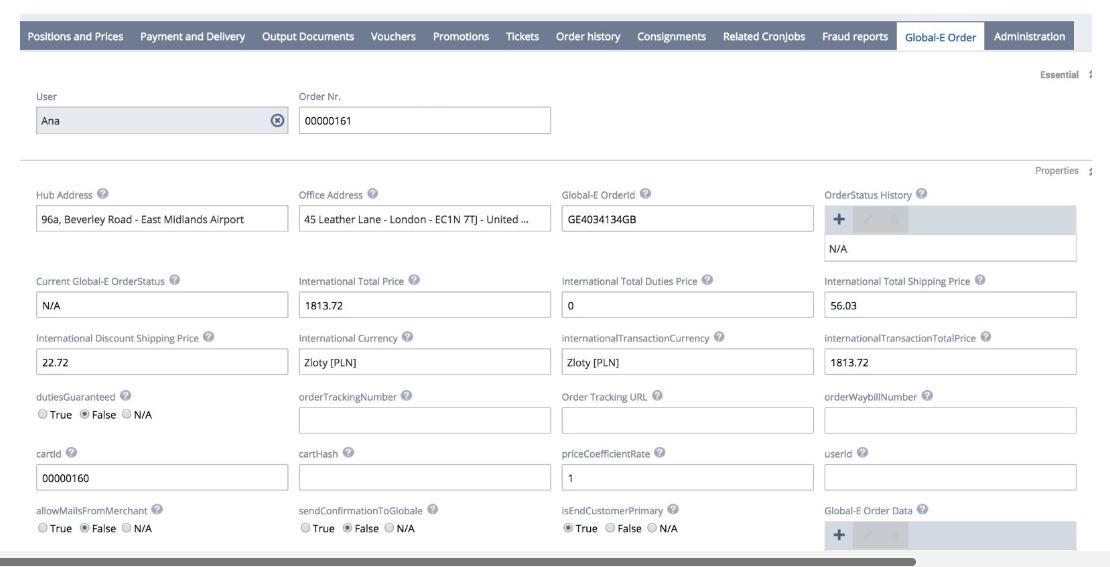
Once Global‑e creates the order on SAP Hybris, it adds an extra tab called 'Global‑e order' to the order details. The Global‑e tab contains Global‑e-specific information, such as order IDs, international processes, order tracking URLs, and currencies.
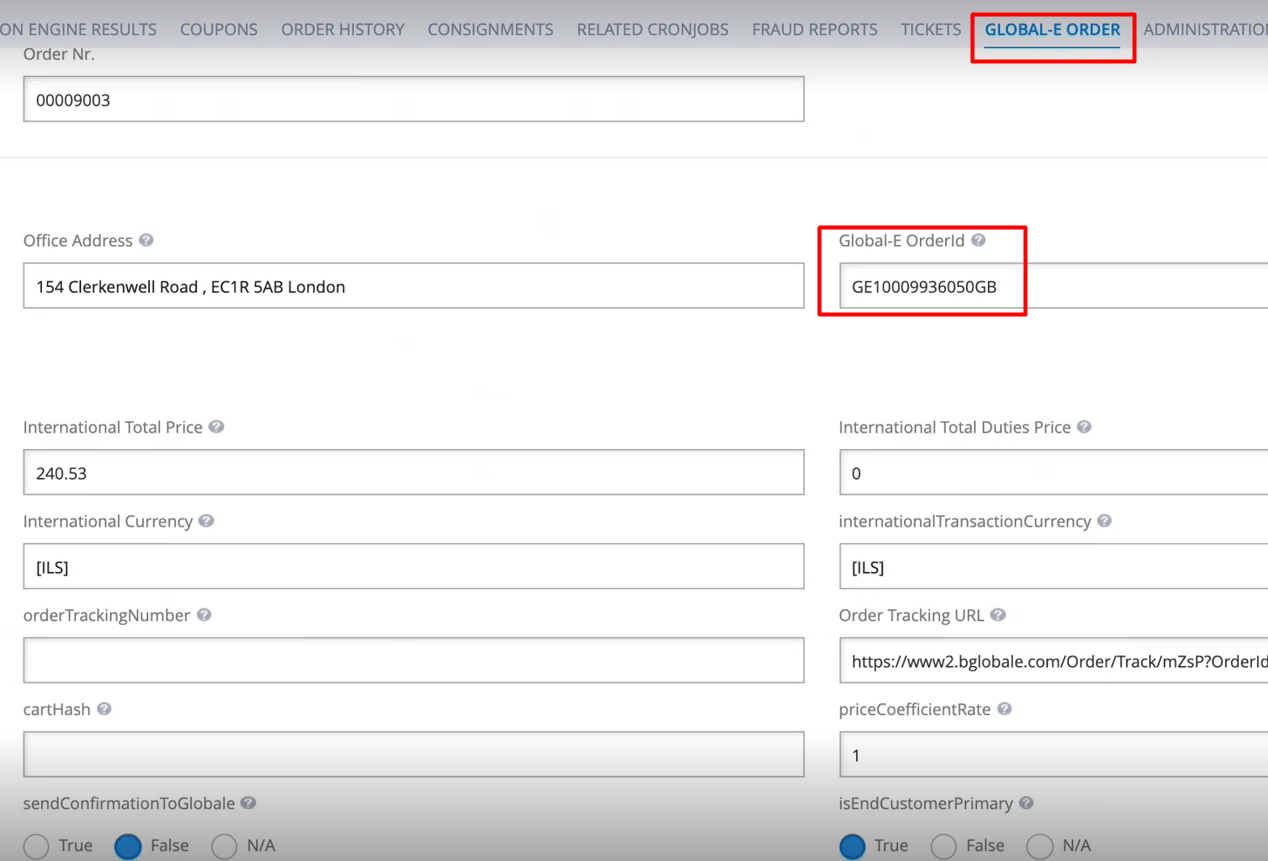
A typical Global‑e order ID contains a GE prefix and ends with the customer's two-letter country code. For instance: GE1234567GB.
## Viewing Orders
Once Global‑e creates the order on SAP Hybris, it adds an extra tab called 'Global‑e order' to the order details. The Global‑e tab contains Global‑e-specific information, such as order IDs, international processes, order tracking URLs, and currencies.
**Global‑e Order Screen (Tab)**
 **Global‑e Order ID**
 To search for Global-e orders in Backoffice, use the Hybris `OrderID` or the Global-e `OrderID` starting with GE.
You can also view Global-e orders in the Customer Services Tools.
## Searching for Global‑e Orders
You can find Global-e orders by running a search in Backoffice using the Hybris OrderID or Global-e OrderID starting with GE. You can also view Global-e orders by using the Customer Services Tools.
## Order Details
**To manage Global-e orders and view Order Details:**
1. Log in to Backoffice.
To search for Global-e orders in Backoffice, use the Hybris `OrderID` or the Global-e `OrderID` starting with GE.
You can also view Global-e orders in the Customer Services Tools.
## Searching for Global‑e Orders
You can find Global-e orders by running a search in Backoffice using the Hybris OrderID or Global-e OrderID starting with GE. You can also view Global-e orders by using the Customer Services Tools.
## Order Details
**To manage Global-e orders and view Order Details:**
1. Log in to Backoffice.
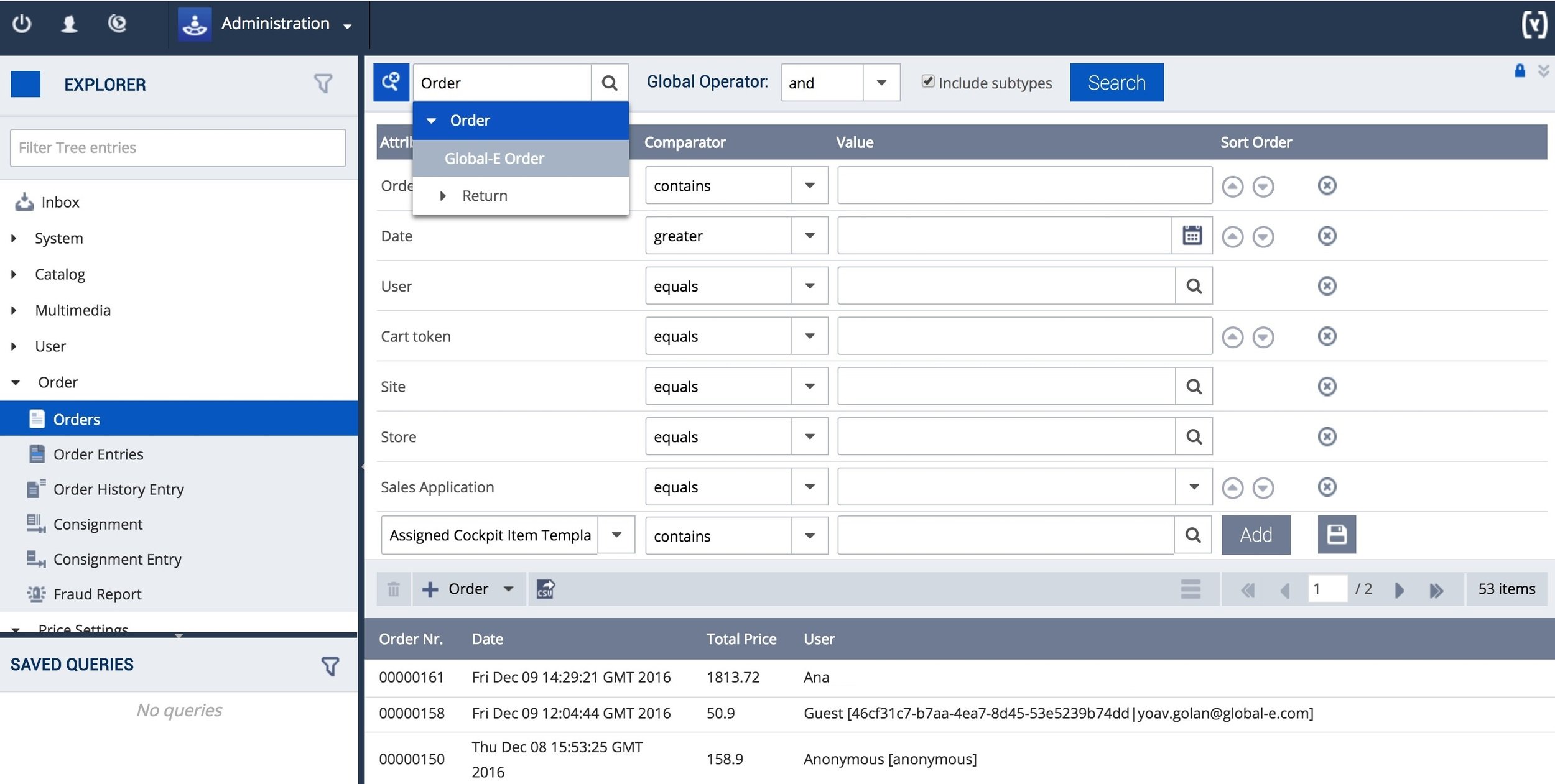 2. From the Backoffice Explorer (left menu), select **Orders**.
3. At the top of the main area, to the left of the Order field, click
2. From the Backoffice Explorer (left menu), select **Orders**.
3. At the top of the main area, to the left of the Order field, click  (magnifying glass).
4. Select **Order** > **Global‑e Order**.
The attribute screen opens showing the Global-E `OrderId`.
5. Enter the Global‑e `OrderID` and click **Search**.
(magnifying glass).
4. Select **Order** > **Global‑e Order**.
The attribute screen opens showing the Global-E `OrderId`.
5. Enter the Global‑e `OrderID` and click **Search**.
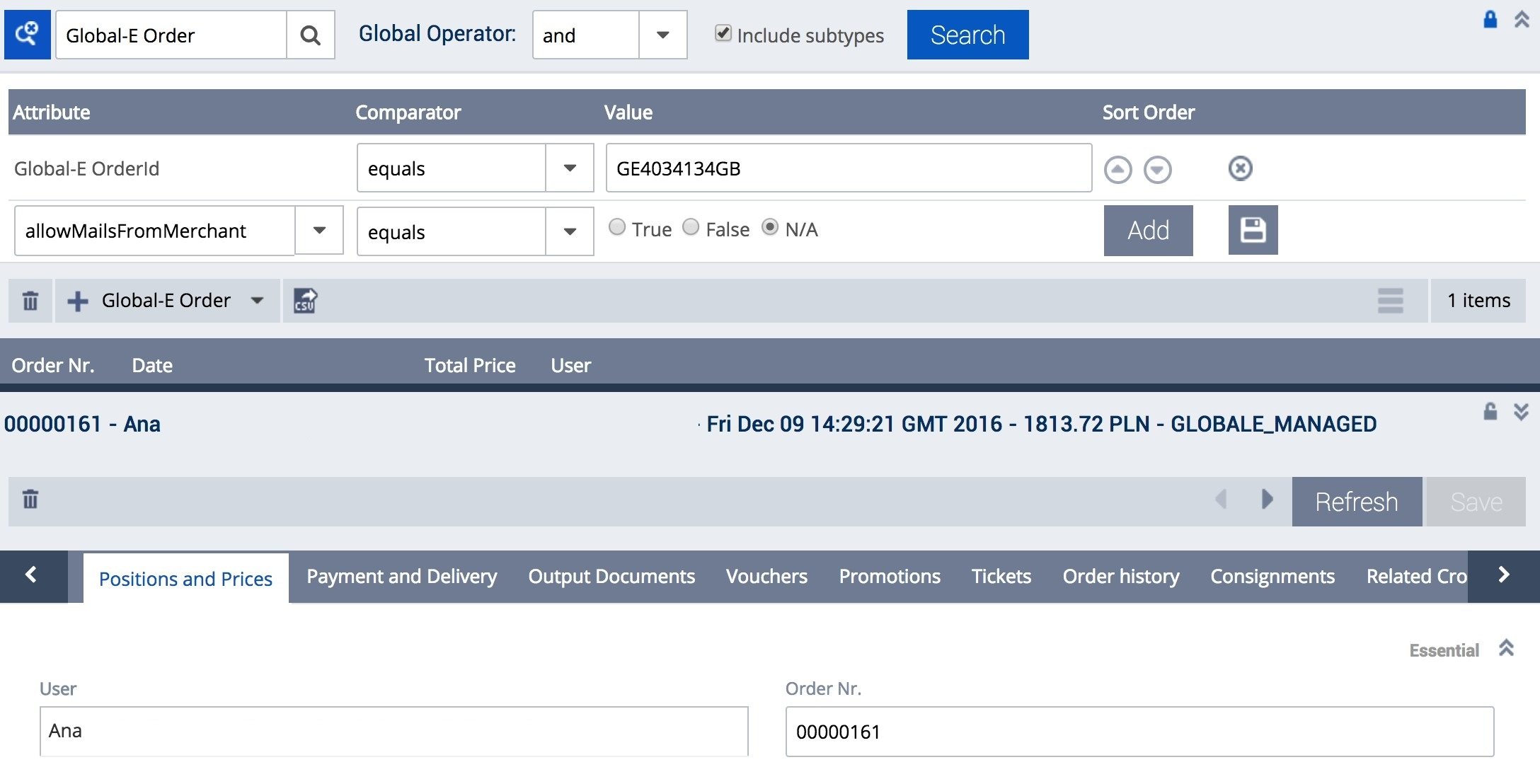 An overview of the order is displayed.
6. Click the **Positions and Prices** tab.
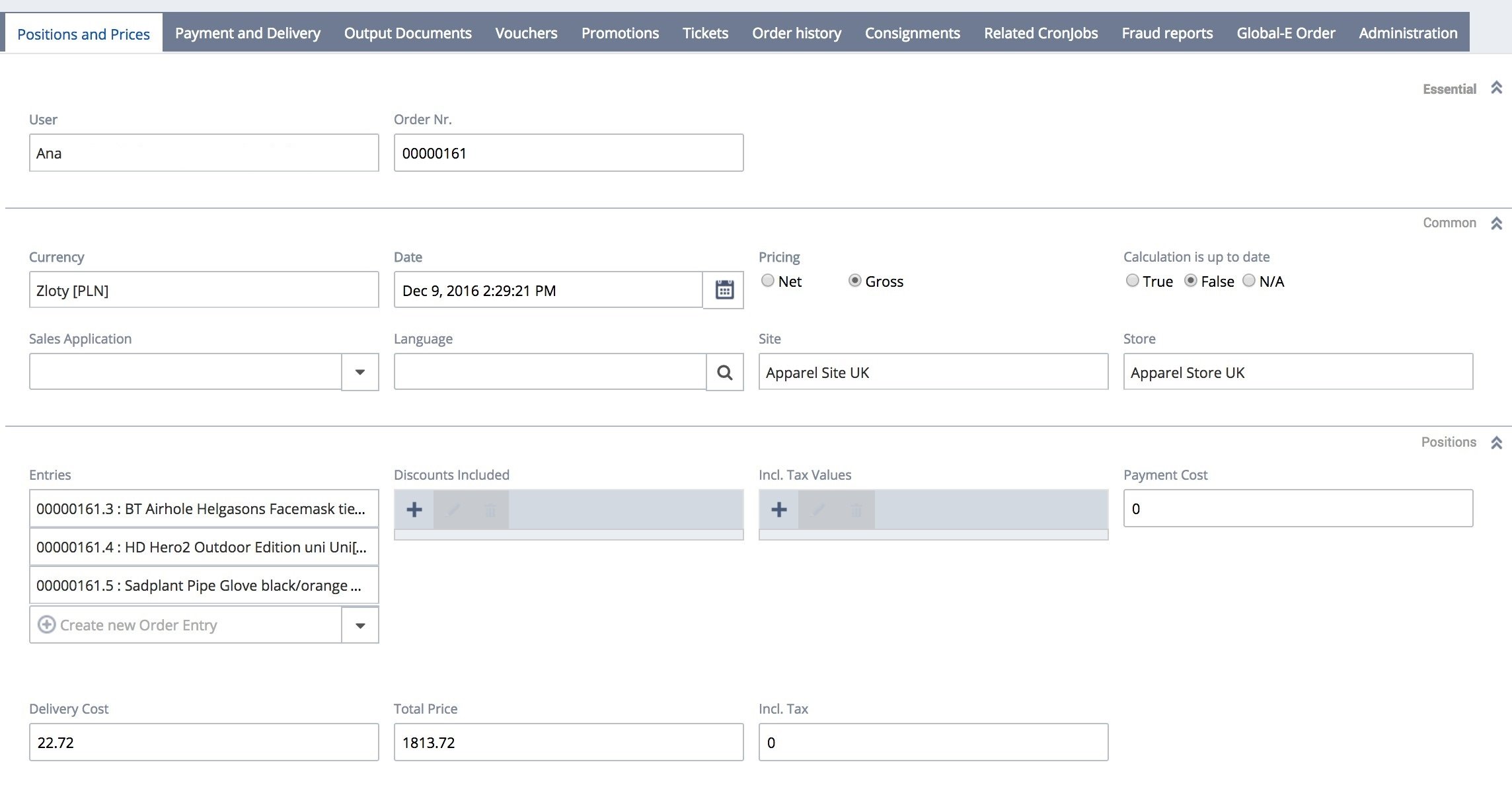
This tab shows:
* A line item for each product.
* The delivery cost and total price are in international currency.
* Product details, such as the base price in merchant currency.
**Positions and Prices Screen (Tab)**
An overview of the order is displayed.
6. Click the **Positions and Prices** tab.
This tab shows:
* A line item for each product.
* The delivery cost and total price are in international currency.
* Product details, such as the base price in merchant currency.
**Positions and Prices Screen (Tab)**
 7. Click the **Global‑e Order** tab.
This tab shows additional information about the order. For example, the Duties and Discounts applied to shipping.
**Global‑e Order Screen (Tab)**
7. Click the **Global‑e Order** tab.
This tab shows additional information about the order. For example, the Duties and Discounts applied to shipping.
**Global‑e Order Screen (Tab)**
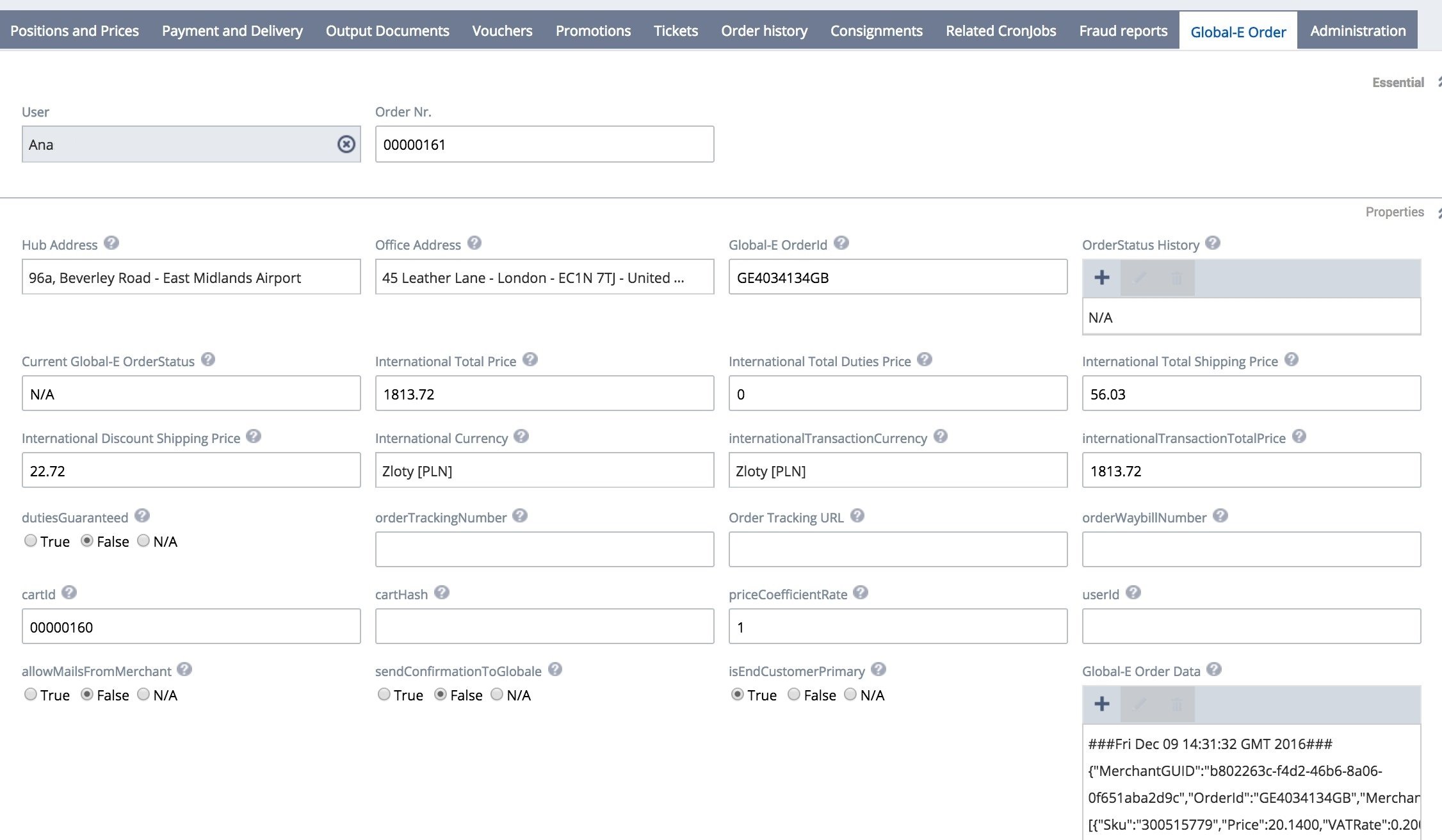 Note the Global‑e order ID.
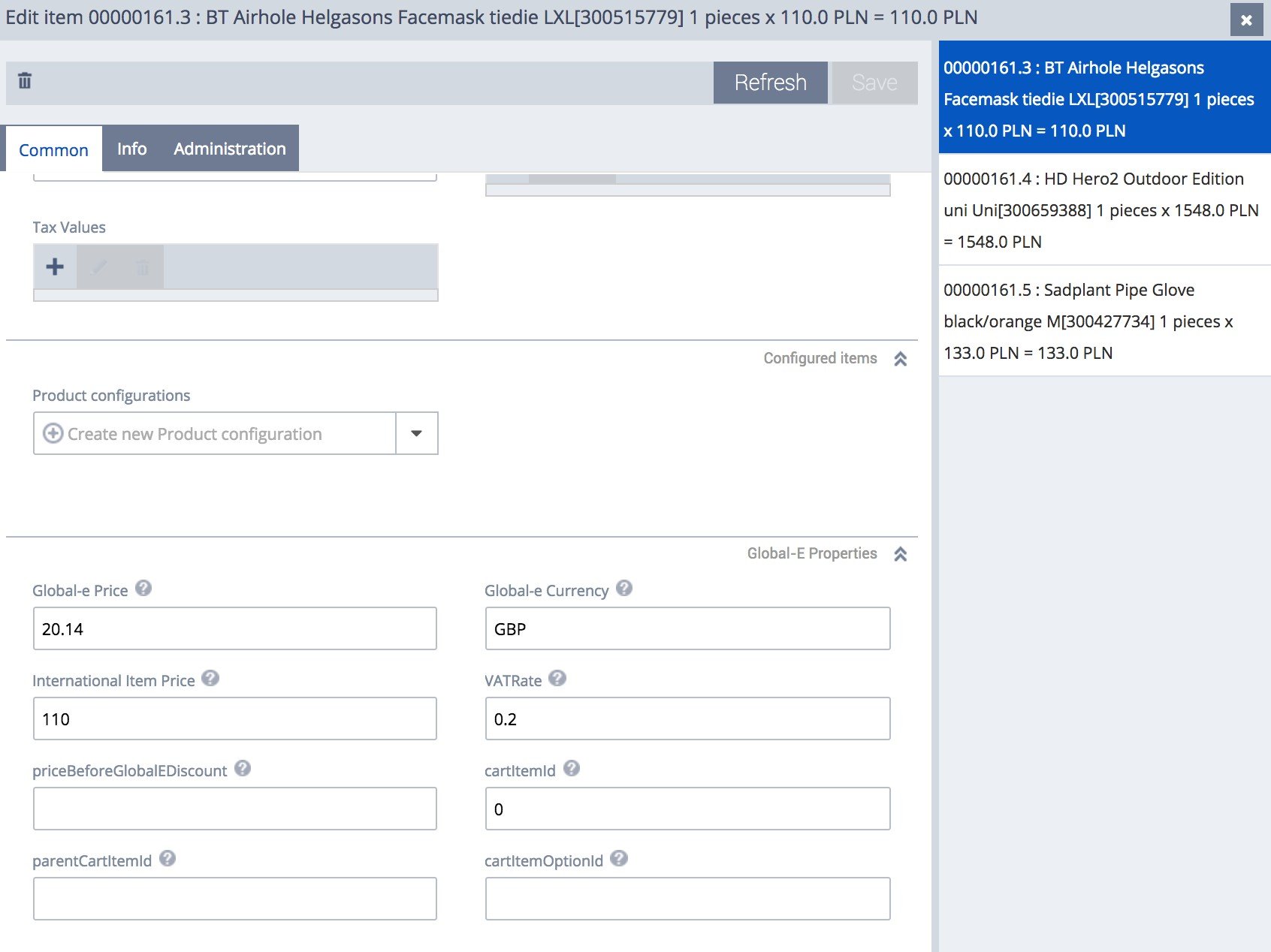
8. Double-click a product line.
The Global‑e Properties show the base price of the product and the currency (supported by the merchant),
The `vatRate` that is shown is the Global-e `vatRate`.
Note the Global‑e order ID.
8. Double-click a product line.
The Global‑e Properties show the base price of the product and the currency (supported by the merchant),
The `vatRate` that is shown is the Global-e `vatRate`.
 **To view Global-e orders using the Customer Services Tools:**
1. Log in to Backoffice as a Customer Services Agent.
2. Search for a Global‑e order:
1. Click the **Orders** tab.
2. Repeat steps 1 - 4 in the previous procedure.
Now you can see that:
* The Order Status shows that the order is managed by Global-e.
* The Order Details tab shows the details of the order.
* A Global‑e Order tab is also added to the Customer Services Tools
## Order Status
The order is created in the status '**Pending**' (Global-e custom order status field).
'**Pending**' indicates that Global‑e still checks for fraud.
Approve order - When the fraud check is complete, the status change to '**processing/Paid**'.
Cancel order - Global‑e cancels the order if the fraud check fails.
**To view Global-e orders using the Customer Services Tools:**
1. Log in to Backoffice as a Customer Services Agent.
2. Search for a Global‑e order:
1. Click the **Orders** tab.
2. Repeat steps 1 - 4 in the previous procedure.
Now you can see that:
* The Order Status shows that the order is managed by Global-e.
* The Order Details tab shows the details of the order.
* A Global‑e Order tab is also added to the Customer Services Tools
## Order Status
The order is created in the status '**Pending**' (Global-e custom order status field).
'**Pending**' indicates that Global‑e still checks for fraud.
Approve order - When the fraud check is complete, the status change to '**processing/Paid**'.
Cancel order - Global‑e cancels the order if the fraud check fails.