

- Global‑e Merchant ID: The ID of your Global‑e account
- Global‑e Merchant GUID: A GUID number for your Global‑e account. Note that Global‑e sends you a different GUID for staging and production. Make sure to use the correct GUID.
- In addition, Global‑e sends you a URL to download the installation files via Bitbucket.
- Your Bitbucket account.
- The features you want Global‑e to support: the list of countries and special features such as Fixed Prices, multiple sites, and more.
What’s Next:
- Discover the Bespoke Functionality.
- Price Settings and Price Conversion
- Merchandising: Promotions, Restricted and Forbidden Products.
- Managing Orders
- Cart and Checkout
- In-Depth: Discover the Global‑e Add-on extensions and implement custom functionality
- Known Limitations
Integration Flows
End-to-end Flows (High-Level)
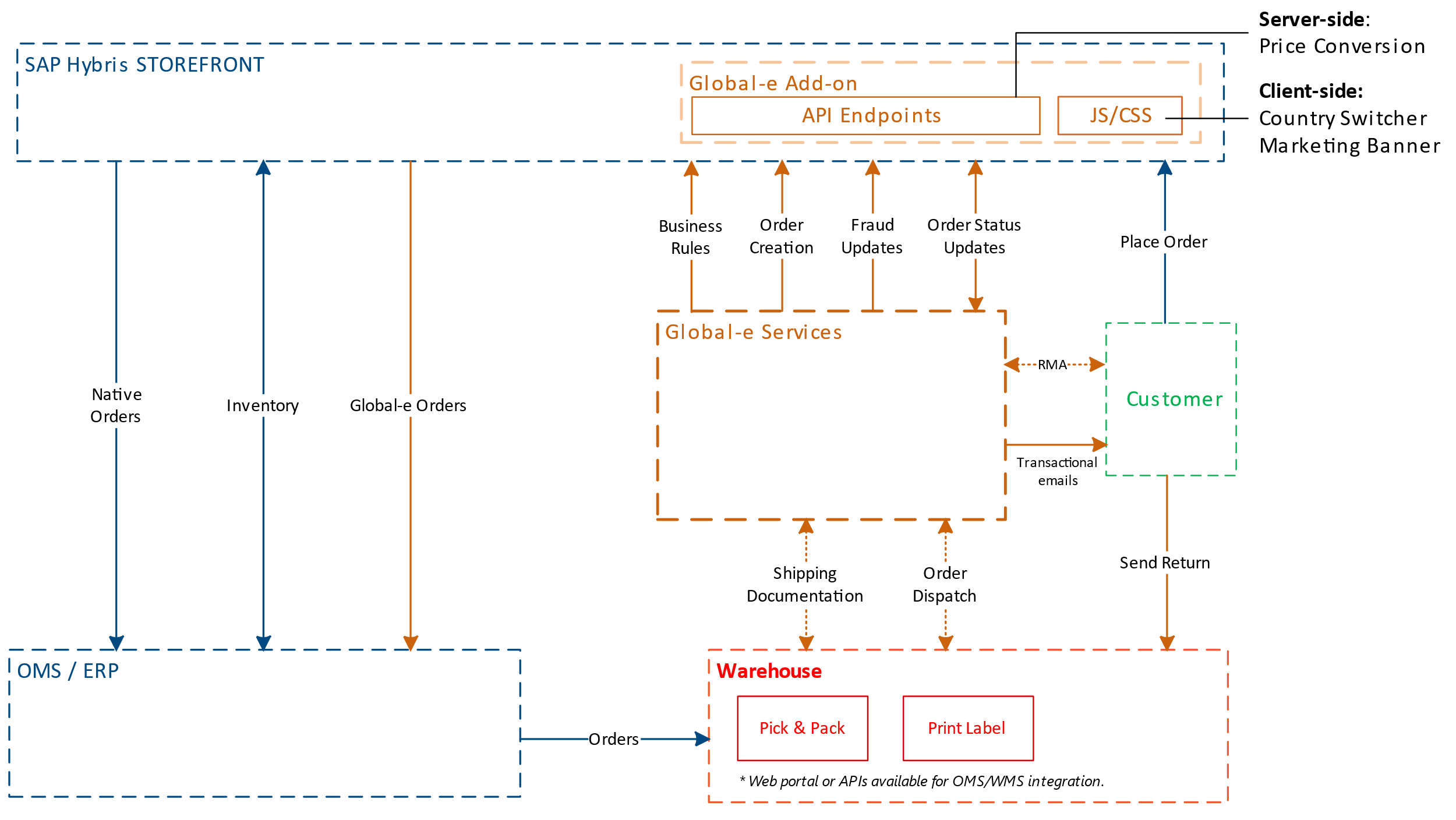
Global‑e Hybris Order and Checkout Flow
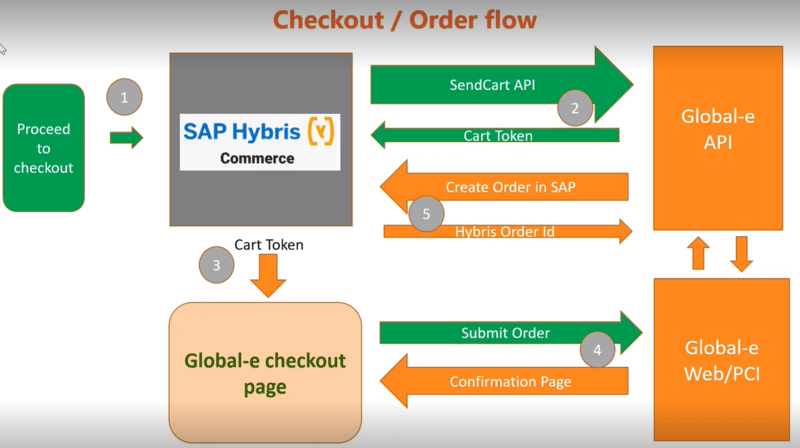
- When a customer proceeds to checkout (1), Global-e verifies if the selected shipping country is operated by Global-e.
- If operated by Global‑e, the SentCart API is used to send all relevant information about the products and customer details to Global‑e (2).
- Subsequently, Global‑e creates a cart on the Global‑e side and returns the cart token to SAP Commerce (Hybris).
- Global‑e uses this cart token to initiate the checkout process (3).
- Global‑e then makes a server-to-server API call to SAP, triggering the creation of an order on the SAP Ecommerce (Hybris) side (4,5).
Scripts
The following Global‑e scripts are installed.- Global‑e CSS
- The JavaScript code is installed on all site pages and the Checkout Page.