

standardcode and mididentifier to Global-e at checkout. Your SKU is already sent separately, so there is no new SKU field to add.
For what each identifier is, see The three identifiers on the overview page.
Choose your setup
There are two ways to send the identifiers. Both need a developer to add a short code snippet, because WooCommerce has no built-in field for the manufacturer code. Pick the option that fits your store and follow only that section.
You can check your plugin version by navigating to Plugins → Installed Plugins.

Option A: Native GTIN field + code filter
Requires: Global-e WooCommerce plugin 1.17.2 or later, on WooCommerce 9.2 or later.-
Fill in the S-PID (
standardcode). Fill in GTIN, UPC, EAN, or ISBN. For a simple product, it’s under Product data, then Inventory. For a variable product, fill it in on each variation (Variations, then open the variation). You can also fill it in on the parent product’s Inventory tab: any variation without its own value uses the parent’s value. No plugin setting is needed for this field.Simple product: Product data, then Inventory. Variable product: the field on each variation.
 Variable product: the parent’s Inventory tab, used for variations without their own value.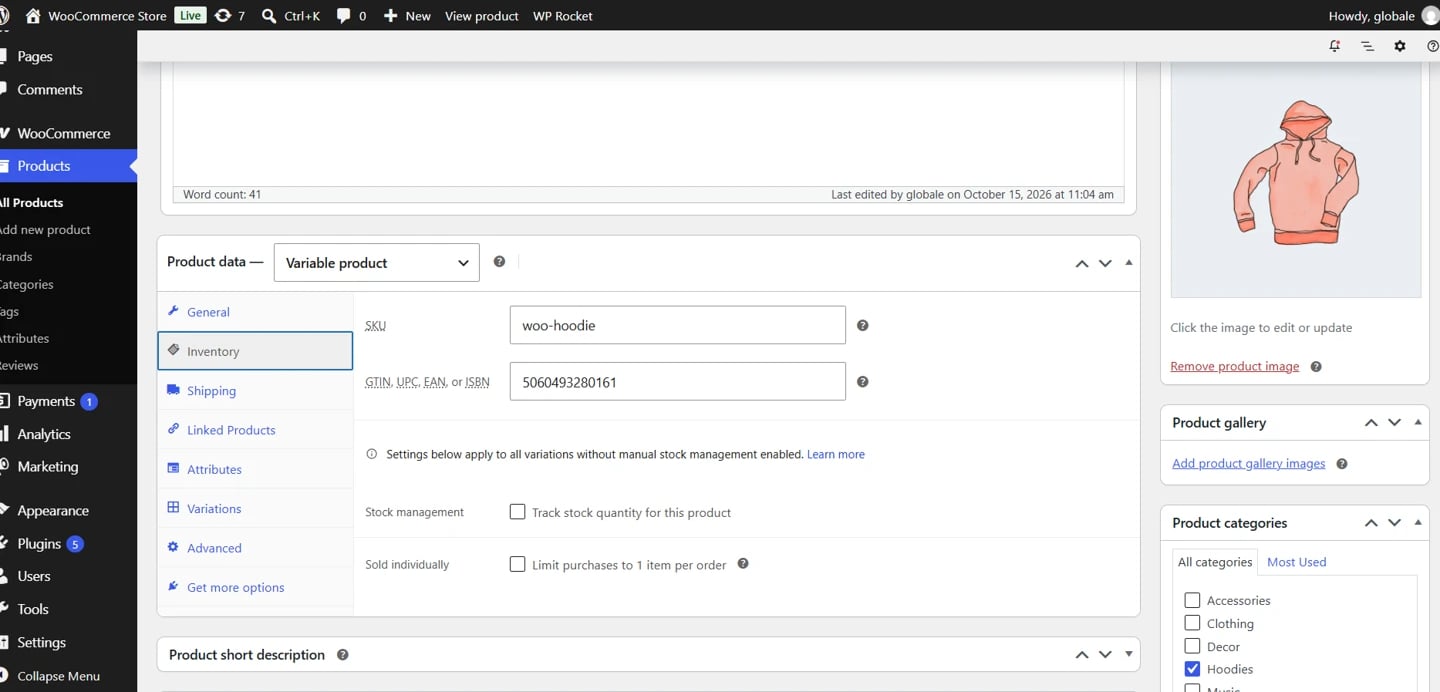
-
Send the NS-PID (
mididentifier) with the code filter. Add the code from The code filter below, and remove thestandardcodeline from the example so the native field value is used. - Place a test order and confirm both keys appear when values exist and are omitted when blank.
Option B: Code filter only
Requires: Global-e WooCommerce plugin 1.14.0 or later.- Send both identifiers with the code filter. Add the code from The code filter below, with both the
mididentifierandstandardcodelines. - Place a test order and confirm both keys appear when values exist and are omitted when blank.
standardcode to the native field (Option A). Remove the standardcode line from the code when you do.
The code filter
The plugin’swoocommerce_globale_pro_add_cart_product_meta_attributes filter adds key/value pairs to each cart line’s MetaData. Your developer decides where the values come from: for example, a custom field on each variation (added by your developer or a custom fields plugin), or an external system such as your ERP or PIM.
Example for your theme’s functions.php or a custom plugin. Replace the meta keys with wherever you store the identifiers:
- Use the keys exactly as written, in lowercase:
mididentifierandstandardcode. - Leave a key out when there is no value. Never send NA, 0 or -.
- Send each key from one source only. If
standardcodeis in the native field, don’t also send it with the filter. - Test on a staging site first and confirm both keys appear on the cart line.
Reference
What gets sent
Key points
- Native field fallback. For the native GTIN, UPC, EAN, or ISBN field, a variation without its own value uses the parent product’s value.
- Omit, don’t fake. Leave the value empty when you have none. Never enter NA, 0 or -.
- When values are read: at checkout, when the customer proceeds to Global-e. Updated catalog values apply on the next checkout.